Everything the software does, in the order you meet it
Set up a store, take an order at a table, cook it, collect the money and read the day back. Every picture below is a real screen from the running app, not an illustration.
Setting up takes an afternoon
Five steps, in this order. None of them needs a developer, and none of them needs your whole menu typed out before you can show anybody the software.
Create the store
An email address and a password, then the setup wizard: the store, the brand, the tax rate and the menu. The store gets its own address, and every screen is branded with it.

Put the menu in
Say what kind of kitchen the store is and the menu opens already written: twelve kinds, each with between about forty and sixty dishes priced and filed in their own sections. Add your own categories and dishes as well, and change anything you do not serve. A dish takes a price, a description, a photo and a veg or non-veg mark.

Print the codes
One code for each table or desk, one for the counter, and one plain link for the menu. Every code is its own name in the reports, so a table's order is filed under that table.

Add the people
A manager, a kitchen login and a counter login, each with its own account. The owner and the manager sign in with an email and a password. The kitchen and the counter sign in with a username and a four digit PIN, which is faster on a shared tablet mid-service.

Show the staff their screen
Each person signs in and sees only their own screen: the kitchen sees what to cook and no amounts, the counter sees its own sales, the manager sees the whole board, and the owner sees the day's figures.
The screens, one at a time
These are captures from the demo store, taken on a 390px phone and on a 1440px desktop, which is what a table phone and the counter tablet actually look like.

The customer menu
Customers scan and order in the browser. The page carries the store's name, its phone number, its opening hours and its own colours, and it works on any phone without installing anything.
- Pickup or delivery is chosen at checkout, and the delivery charge follows the distance band the store has set.
- A name and a mobile number are asked for when the food has to reach somebody. At a table neither is needed.
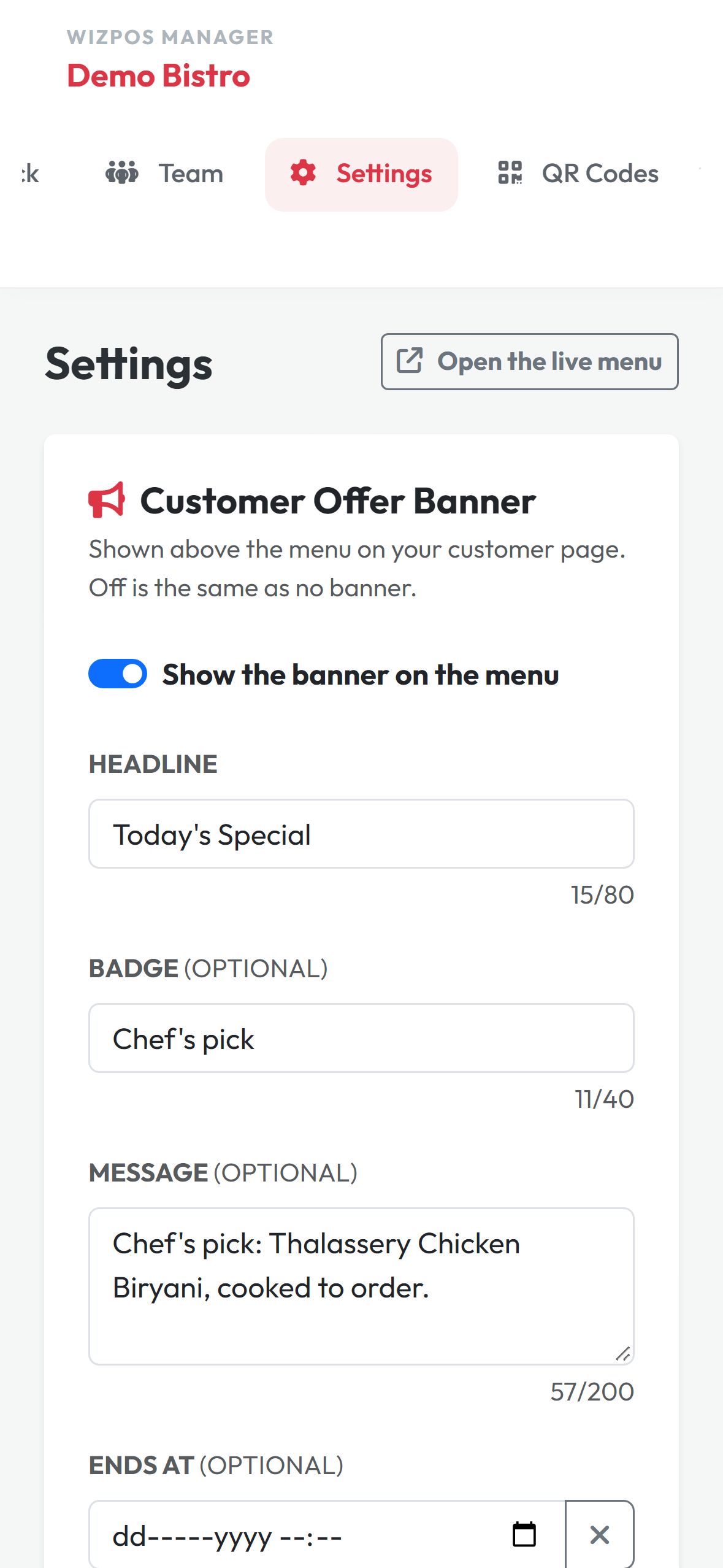
- The store's own offer sits at the top of the menu and hides itself when the offer is over.
- Menu colour follows the store's palette, and the calendar occasions the store has left on.

One card per dish
Photos, prices and descriptions come from the manager's own catalogue, so what a customer reads is what the counter charges.
- A dish with no photo shows a plate placeholder rather than a broken picture.
- A dish that is switched off leaves the menu at once and cannot be ordered.
- Sections are built from this store's own sales: the dishes people ordered most, the best selling drink, and a combo or a pair that goes well together.
- The dish list is a category or the whole menu, grouped and searchable.

Signing in
Owner and manager use an email and a password. Kitchen and counter use a username and a four digit PIN, which is what a shared tablet in a kitchen can actually be typed into during service.
- Five wrong attempts lock an account for fifteen minutes.
- A forgotten password is reset by a link sent to the account's email address.
- A forgotten PIN is replaced by an owner or a manager from the Staff screen.
- Signing out is immediate, and switching an account off ends it on every device.

The counter till
The salesman types a few letters, picks the dish and records the sale. The screen works out the total and the tax, and the sale is on the owner's report immediately.
- UPI is the default payment method and cash stays one tap away, on the same row.
- A walk-in is a takeaway. The manager's counter sheet can also take a pickup or a delivery for a customer on the phone.
- The counter sees its own sales: delivered, collected by this login, collected by somebody else, still to collect.
- With no internet the screen keeps taking sales and holds them on the device.
The kitchen screen
Every order becomes one ticket the second it is placed, with the age counting up in front of the cook. Prices, totals and payment status are removed before the ticket arrives.
- Two states to move through: New, then Preparing, then Ready to serve.
- A new ticket chimes, and the chime still plays from a tab nobody is looking at.
- Tickets are listed oldest first, and the row does not reshuffle when a ticket moves on.
- A phone gets one full ticket with a row of order numbers above it, which is what fits.

The manager board
Everything in the building at a glance, as five lanes. A card sits in the lane that says what you have to do next: cook it, take it out, take the money or close it.
- The button on a card follows its lane. Collect appears only on an order that was served and not paid.
- An order of counter-only items, like sealed drinks, skips the kitchen and arrives ready to serve.
- The lane badge counts what is in it, and the header shows today's orders and today's sales.
- The same login can take a counter order without leaving the board.
Codes for the tables
The manager makes the codes, prints them and sticks them on the tables. Each one carries its own name, so the reports can tell Desk 4 from the counter.
- Codes for the tables and the counter, plus one plain link for a menu posted anywhere else.
- A sticker sheet prints with two codes to a page, ready to cut.
- The store link stays the same even if the store is renamed, so printed codes keep working.
- Scans are counted on the code, so it is clear which sticker is being used.

Reading the day back
The owner's dashboard answers the morning questions: what was taken, how many orders, what was cash and what was digital, what is still unpaid, and which dishes sell.
- Revenue, orders, average ticket and the split between cash and UPI, with the same figures for the period before it.
- Peak hours, so a shift can be staffed around the rush instead of around the clock.
- Sales by source, so a table's orders can be told apart from the counter's and from online.
- Money taken by staff, credited to the login that took the payment.
- The taxable value and the GST collected in the range, and a CSV with a column for each.

Closing the day
Closing is written down from the same screen: the day's opening and closing figures, the tax set aside for it, anything that was cancelled with its reason, and who took the money.
- A trading day is a day that was closed: the opening and closing figures, written down at the till. A range with no closed day says so rather than showing a figure nobody counted.
- A cancelled order keeps the reason it was written off for and stays out of sales, so the takings and the cancelled list never disagree.
- None of it is typed in at the end of the day: every figure here is the orders as they were taken.
What the food costs, and what is left on the shelf
A kitchen that does not count what it buys prices its menu by feel. This part of the product counts it, from the delivery note to the plate. It also stays out of the way for a store that would rather not bother: a dish with no recipe sells exactly as it did.

The shelf, in the units you buy in
One row per ingredient: what is left, what it cost the last time you bought it, and who it comes from. Nothing has to be counted to keep it honest, because the shelf is the sum of what came in and what went out.
- Seven units: kilogram, gram, litre, millilitre, piece, pack or dozen, so a delivery note is typed in the way it was written.
- What it cost: the cost per unit is what you paid on average, so a price rise moves the shelf the day the new stock lands.
- Who it comes from: each item names its supplier, and the supplier's own screen keeps the bills and what is still owed.

A delivery, and the bill behind it
Stock comes in from the supplier's own paperwork: the invoice number, the date and what was on it. The shelf rises on the day the goods arrive, and what is still owed stays in sight until it is settled.
- Book the delivery: the supplier, the invoice number, the date, and a line for each item at the price on the bill rather than the price you last paid.
- Paid, or still owed: a bill is marked paid when the money goes out, so the list shows what is outstanding instead of pretending every delivery settled.
- Stock in by hand: when a delivery arrives with no paperwork, the amount and the price for one item are typed straight onto it.

What one plate costs, and what the day cost
A dish costs what its ingredients cost today, so a rise in the price of chicken moves the biryani that same afternoon. A dish with no recipe is normal: it sells exactly as it did and simply waits for its recipe.
- A recipe per dish: what goes into one portion, entered in the same units the shelf uses, and the cost worked out from those ingredients.
- A sale takes the shelf down by itself: nobody writes anything down. The deduction follows the recipe, once per order, even when the till sends the order again.
- Food cost as a share: what the ingredients cost against what was sold, on the owner's board beside the wastage and the value of the shelf.

Damage, with a reason
Expired, damaged, spoiled, spilled, burnt, a staff meal or a free sample: stock leaves the shelf with the reason attached, and every one of them carries its cost into the day. A loss that is written down can be argued with.
- Eight reasons: the reason travels with the movement, so a month of wastage can be read by cause rather than as one number.
- What it cost the day: the value of what was thrown away lands in the day's figures beside the food cost, not in a notebook.

When the count disagrees
Most kitchens never count. A sale takes the ingredients off through the recipe, a delivery puts them back, and wastage takes out what was thrown away. A count is for the times something does not add up.
- Type what you counted: the counted amount, not the difference. The sum is worked out for you, which is the step a person gets wrong at the end of a shift.
- It goes up as well as down: a delivery that was never booked in shows as more stock than the screen says, so a correction has to be able to add.
- Recorded, never overwritten: a correction is a movement with a reason and a name on it, so the shelf can always be explained.

What needs buying, and how long it lasts
Set a reorder level and an item joins the list when it falls below it, with the days it will last at the rate the kitchen is really using it. An item that is not moving gets no days figure rather than a flattering one.
- Below its level: the count sits beside the badge, so the list is a number to act on rather than a feeling about the store room.
- Days it lasts: worked out from what the kitchen is really using, not from what somebody hoped it would use.
- Onto a delivery in one button: everything that is short goes onto a delivery at the amount to buy, so the order is written once.
- In the inbox at eight: the same list can reach the store's own inbox every morning, before the day starts.

Ordering it, without typing it out twice
Almost every order this shop places already went out on WhatsApp: the manager typed the list into a message, sent it, and then wrote it into the software as well so the books agreed with the shelf. It is written once now. The message is built from the order and opens in the phone's own WhatsApp, and the software never sends anything by itself.
- The order, built once: choose the supplier, add the items and the amounts, each in the unit the shelf already keeps it in.
- The rate paid last time: every line carries what you paid for it the last time you bought it, so the supplier has a price to agree or correct rather than a list of amounts.
- The phone's own WhatsApp: the message is composed here and handed to WhatsApp with the list already in it. No business account, no token, no charge per message, and nothing for anyone to refuse.
- Waiting to arrive buys nothing: an order that has gone out is not stock and not money. It asks whether the message really went, because no software can see WhatsApp, and the shelf moves only when the delivery is booked in.
Plans, payment and what happens if a payment is late
Four packages, seven days free with every feature on, and no card to start. The ceilings below are the ones the software enforces, not a wish list.
| Package | A month | A year | Table codes | Staff logins | Products | Report history |
|---|---|---|---|---|---|---|
| Resto | ₹1,039 | ₹8,789 | No ceiling | 10 | No ceiling | 3 months |
| Resto Plus | ₹1,299 | ₹10,989 | No ceiling | 25 | No ceiling | 1 year |
| Resto Pro | ₹1,559 | ₹13,189 | No ceiling | 40 | No ceiling | No cut-off |
| Enterprise | Quoted | No ceiling | No ceiling | No ceiling | Full | |

The subscription page
Every store has one, at its own address, and it is the only page that has to keep working when everything else is paused for non-payment. It shows the package in force, what it includes, the price for a month and for a year, and a UPI code to pay with.
- A year costs about 29% less than twelve monthly payments: pay for roughly 8½ months and get 12, and it is the only difference between the cycles. The limits, the screens and the support are identical. The year is the lower price because it is paid once, up front.
- Payment goes to the restaurant's own UPI. WizPOS takes no commission and holds no card details.
- A payment is filed from this page and confirmed on the same day, usually within hours.
Questions
What a new restaurant asks in its first week: the service, the money and the plan. Every one of them is answered once, here.
How do I add or change a dish?
On the manager's Products screen. A dish is switched off rather than deleted, so orders and reports from last month keep its name and the price it was charged at. There is deliberately no delete button anywhere in the catalogue, on any package.
What is a station, and why did my drink order skip the kitchen?
Every category is set to the kitchen or to the counter. The kitchen station means the item is prepared, so it needs a ticket. The counter station means it is handed over as it is, like a sealed bottle or a packet of chips, so an order made only of those items goes straight to ready to serve and never appears on the kitchen screen.
A category that mixes both kinds of item cannot be routed correctly, because the station is set once per category and every dish inherits it. Split it into two categories.
What do New, Preparing and Ready to serve mean?
They are the kitchen's three states. A new ticket offers Start Preparing, and a shortcut for something that is already done. A preparing ticket offers Ready To Serve. Once it is ready, the ticket leaves the kitchen screen and the order appears in the manager's Ready To Serve lane.
Who can see the money?
The kitchen login cannot. Amounts, totals and payment status are stripped from a ticket before it reaches the kitchen screen, and a kitchen login cannot take a payment. The manager and the owner see everything. A counter login sees the amounts on its own sales, and which of them it has collected.
How do I know who took the money?
Every sale records who sold it and who took the payment, which is not always the same person when a manager collects cash at the till. The owner's dashboard has a card for money taken by each staff member, and the CSV carries the same names.
How do I add somebody, and how do I stop them signing in?
On the Staff screen. An account is switched off rather than deleted, and it stops working at once on every device it was signed in on. Switching somebody off does not free a login: the packages count the seats you have created, not the ones in use, so a leaver's account holds its seat until the package changes.
What details does a customer have to give?
A name and a mobile number for an order from the menu and for a pickup, because somebody has to be able to call about it. A delivery needs the mobile number and the address, and the name is optional. An order at a table, at the counter, or a walk-in takeaway needs nothing at all.
What happens when the internet drops?
The counter keeps selling. Those sales are held on that device and shown as waiting, then sent to the books by themselves when the connection returns, still timed at the minute they were taken. The till keeps selling this way for up to 7 days.
A customer ordering from a QR code needs a connection, so it is worth keeping a mobile hotspot for the kitchen during service.
Can I close the shop for a day?
Closing the store on the manager's dashboard stops new orders and writes the day's opening and closing figures down in the same action. The menu shows a short notice with your opening hours instead of failing, and it starts taking orders again when the store is opened.
What counts as one day?
Each store sets its own time zone and the hour its trading day starts, so a kitchen that serves until two in the morning can start the next day at five. The dashboard, the daily figures and the CSV all follow that day, which is what stops a late night's takings landing on the wrong date.
Do you do GST bills?
Tax is switched on per store with a rate, and prices are marked either as already including it or as having it added at the till. Every order keeps the rate it was charged at, so changing the rate later never rewrites an old bill. The dashboard totals the taxable value and the GST collected for any range, and the CSV has a column for each.
Can I get the numbers out of the system?
The owner's dashboard exports any date range as a CSV, one row per order, with the amounts as plain numbers and the currency named in the column header so a spreadsheet totals them without being told what they are. The file opens in Excel and in Google Sheets.
Does it keep track of stock?
If the store wants it to. An ingredient is kept in the unit it is bought in, with what it costs and who it is bought from. A delivery bill raises the shelf, a sale takes the ingredients off it through the dish's recipe, and wastage takes out what was thrown away. A store that never opens the stock screen sells exactly as it did before.
How does a dish get a cost?
A recipe is the list of ingredients in one portion, entered in the same units as the shelf, and the cost is worked out at what those ingredients cost today. That gives the cost of one plate and, against the day's takings, the food cost as a share of what was sold, which the owner sees on the dashboard. A dish with no recipe is not a problem: it sells normally, and it simply has no cost until its recipe is written.
How do I know what to order?
Set a reorder level on an item and it appears on the list when it falls below it, with the days it will last at the rate the kitchen is really using it. An item nobody is using gets no days figure rather than a flattering one. One button puts everything that is short onto a delivery at the amount to buy, and the same list can be emailed to the store's own address at eight in the morning.
What happens to stock when food is wasted or an order is cancelled?
Wastage leaves the shelf with a reason attached, and the reasons are the kitchen's own: expired, damaged, spoiled, spilled, burnt, a staff meal, a free sample, or other. Each one carries its cost into the day rather than disappearing.
A cancellation follows the kitchen rather than the paperwork. An order the kitchen never touched puts its ingredients back, because nothing was used. A plate that was cooked and then thrown away keeps its deduction, so a day that wasted a meal cannot look better for the cancellation. A bill merged into another puts nothing back at all, because its food was sold.
What do I need to buy?
A phone or a tablet with internet for the counter and the manager, and a second device for the kitchen screen. An old tablet, or a spare monitor with a browser, is enough. Nothing is installed, and there is no POS machine, no card reader and no printer to rent.
Can the menu change colour for a festival?
Every store picks its own colour from a preset list, and the menu also follows the calendar for occasions like Onam, Eid and Christmas. Each occasion can be switched off in the settings, and a festival that moves with the moon is entered with its date for the year.
Who can open which screen?
Each account can only open the screens its role is for. A kitchen login that tries the manager's address is refused with a page naming the role and the screen, rather than a blank error. The role table lists what each one can do.
Which package do I need?
Resto suits a cafe, a takeaway or a cloud kitchen, and it is a complete till rather than a starter kit: no ceiling on menu items or table codes, ten staff logins, delivery priced by distance, the suggestion banners and three months of report history. A new store opens on a ready-made menu for the kind of kitchen it is, between about forty and sixty dishes, and every dish is editable. Resto Plus raises the logins to twenty-five and the history to a full year, which is what a shop needs to compare this season with the last one. Resto Pro raises the logins to forty and removes the cut-off from report history altogether. Enterprise is quoted for the size of the restaurant and carries no ceiling at all. The three Resto packages sit hundreds of rupees apart rather than doubling, so the top one costs half as much again as the first. Every package starts with seven days free, with every feature switched on and no card. The trial is one per business, recognised by GSTIN, phone number or shop address, whichever we see first; a second branch of the same business starts on a plan, and we will sort out anything that looks wrong if you write to us.
What counts against the table allowance?
The codes named for a table or a desk, like Desk 1 and Desk 2. The counter sticker and the plain menu link do not count against the allowance, so a package of six table codes is six tables, not six stickers.
What counts as a staff login?
Every account except the owner's. The owner's login is included in every package, and a switched-off account still holds its seat, because the ceiling counts the seats created rather than the people currently signed in.
What is the difference between the roster and taking orders?
The roster is who works here: attendance, this week's shifts, time off, and the papers a kitchen is asked to keep. Taking orders is a switch on one person at a time, for whoever is taking money from customers, and the job title has nothing to do with it. A shawarma maker with the switch on counts against the selling ceiling exactly as a salesman does.
The two are counted apart. A package can be full on the roster and still have room for somebody to sell, and the other way round. Marking a person as left frees both places; switching a login off frees neither.
A month or a year?
Either, and it can be changed from the subscription page. A year saves about 29% against twelve monthly payments. Prices are per restaurant, whatever the takings, and there is no per order charge.
How do I pay?
The subscription page shows the amount for the cycle you picked, and a UPI code to pay with. Pay it, then file the claim on the same page, or send the confirmation on WhatsApp. The period starts as soon as the payment is confirmed, and the page notices by itself, so a screen left open comes back to life without a reload.
What happens if a payment is late?
The store keeps working for 48 hours after the period ends, so a renewal a day late does not stop service. After that the menu stops taking orders and the staff screens wait, and the subscription page keeps working so the store can pay. Nothing is deleted: every past order, customer and report is there again the moment it is renewed.
How do I move to another package?
From the subscription page, without a phone call. An upgrade applies as soon as the payment is confirmed. A downgrade applies when the period you have already paid for ends, so a change of plan cannot take away something you have paid for.
Is there a contract, a setup fee or a commission?
No contract, no setup fee and no commission on orders. The price is the price for the package and the period you chose, and nothing else is charged on top. The year is the lower price because it is paid once, up front.
Who sets the store up?
Your own menu, your hours and your codes are set up with you, and the questions after that go to WhatsApp. The menu that comes with your kind of kitchen is there for a restaurant that would rather edit a menu than write one, and the catalogue behind it holds 922 dishes.
Ask, or try it first
The demo is the real app with a sample menu and live orders, so every screen on this page can be opened and used before anybody decides anything.